How to Design a Custom T-Shirt with AI (Without the Usual Mistakes)
A step-by-step way to go from an idea to a print-ready shirt with AI: what to type, how to edit, and the checks that stop a bad print.
Short answer: describe the picture and the mood in one sentence, keep any words out of the image prompt, edit by naming only what should change, then check resolution, background and contrast on the actual garment color before you order.
1. Describe the picture, not the shirt
A good first prompt has three parts: a subject, a style and two to four colors.
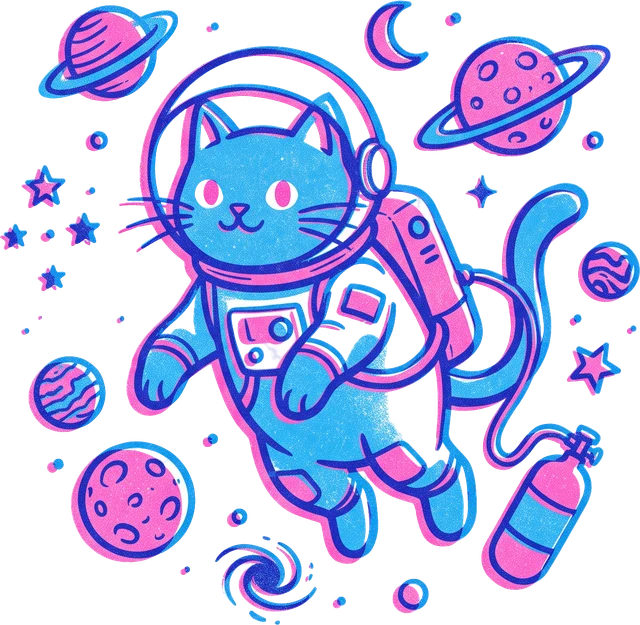
An astronaut cat floating among small planets, risograph print style, fluorescent pink and blue.
Leave the T-shirt out of it. If you ask an image model for "a shirt with a cat", it often draws a photo of a shirt, and that can't be printed. VibePrint adds the print constraints for you: flat artwork, isolated subject, no background.
2. Keep text out of the artwork
Image models still misspell words, especially on curved or stylized lettering. Put words in quotes in your request and they become real font layers, set separately from the art. You can retype them, curve them, change the font or add an outline, and they print exactly as typed.
3. Pick a direction, then edit precisely
You get four drafts. Choose the closest, then say only what should change:
- "make the cat wink"
- "swap pink for orange"
- "put OUR NAMES under it, smaller"
An instruction edit changes the part you name and leaves the rest alone, so you don't lose the version you liked. Every change can be undone.
4. Check it like a printer would
Most disappointing shirts come from five problems. Check each before ordering:
| Problem | What you see on the shirt | Fix | | --- | --- | --- | | Low resolution | Soft, pixelated edges | Upscale the art to 300 DPI at print size | | Leftover background | A white or colored box around the art | Remove the background | | Semi-transparent edges | A hazy halo on dark fabric | Clean the alpha edge | | Low contrast | Dark ink disappearing on a dark shirt | Change ink or garment color | | Neon colors | Duller than on screen | Pick a stronger, printable shade |
VibePrint's print check runs these automatically and offers a one-click fix for each.
5. Preview at real size
A design that fills the screen might be 4 inches wide on a shirt. Look at the print area in inches and try the design on more than one garment color before you choose sizes.
Good prompts to steal
- "A goofy frog on a skateboard, 1990s cartoon style, lime green and purple, thick black outlines"
- "A single continuous line drawing of a mountain range, thin black ink, small on the chest"
- "Our golden retriever as 1960s pop art, halftone dots" (attach a photo)
Ready to try one? Open the studio or start from a template.